
HTML5 App / Web Base App
Adding HTML5 App to your Home screen provides you with easy and instant access to find App wherever you are!
Select the type of device you have:
Select the type of device you have:
iPhone and iPad
|
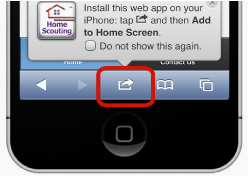
Step 1: Press the "Share" button on the Safari toolbar.
|
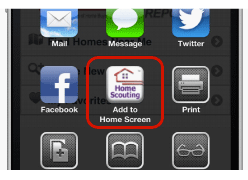
Step 2: Select Add to Home Screen.
|
|
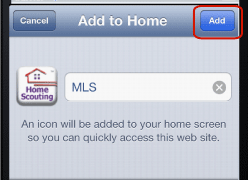
Step 3: Select Add.
|
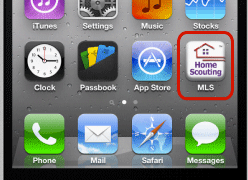
Step 4: The Home Scouting icon will now be visible on one of your Home screens!
|
Android Devices
|
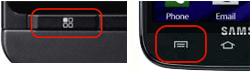
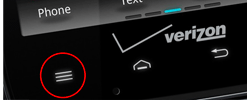
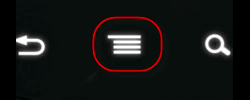
Step 1: Press the "Menu" button located on the row of buttons near the bottom of the device. There are a variety of ways the Menu button might appear depending on your Android model.
Menu button appearance differs between the android devices, in most cases it appears in the lowest left corner.
|
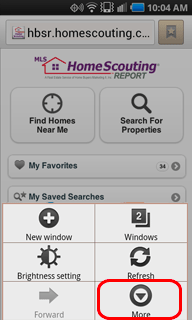
Step 2: Select More from the menu that appears.
|
|
Step 3: Select Add shortcut to Home. If this menu option is not available, see Note below and follow the instructions.
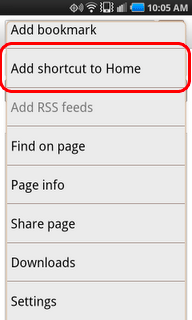
|
Step 4: Home Scouting will now be visible on one of your Home screens
|
Note: If Step 3 did not work for you
On certain Android devices you need to first bookmark Home Scouting prior to adding it to the home screen. Follow these instructions:
1. In the address bar, press the Bookmark button to add Home Scouting as a bookmark
2. Press the physical Menu button and select Bookmarks to navigate to view all bookmarks
3. Locate the bookmark titled "MLS", press and hold its icon until a menu appears
4. Select Add shortcut to Home from the menu
5. Now check your Home screen, and the item "MLS" should be added
On certain Android devices you need to first bookmark Home Scouting prior to adding it to the home screen. Follow these instructions:
1. In the address bar, press the Bookmark button to add Home Scouting as a bookmark
2. Press the physical Menu button and select Bookmarks to navigate to view all bookmarks
3. Locate the bookmark titled "MLS", press and hold its icon until a menu appears
4. Select Add shortcut to Home from the menu
5. Now check your Home screen, and the item "MLS" should be added
Newer Android Devices
|
Step 1: Select the Menu on the browser toolbar.
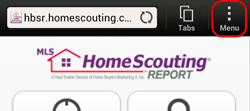
|
Step 2: From the menu, select Add to.
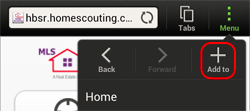
|
|
Step 3: Select Home screen.
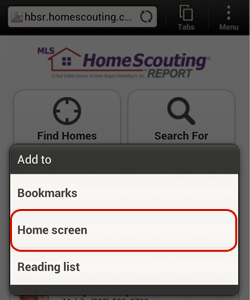
|
Step 4: Home Scouting will now be visible on one of your Home screens!
|
Blackberry Devices
|
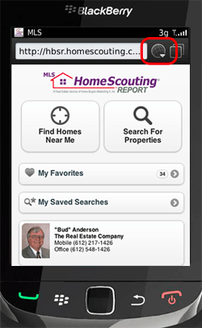
Step 1: Select the "Globe Menu" or BlackBerry Menu button.
|
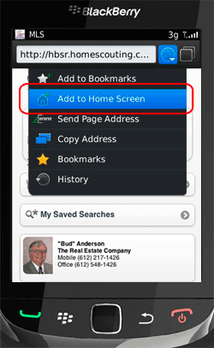
Step 2: Select Add to Home Screen.
|
|
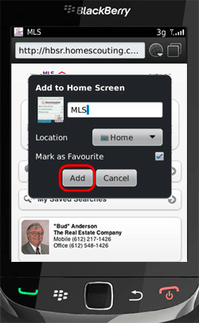
Step 3: Select Add.
|
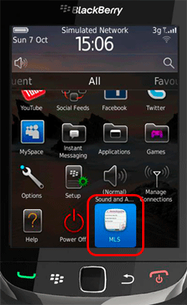
Step 4: Home Scouting will now be visible with your other applications.
|
Windows Phone
|
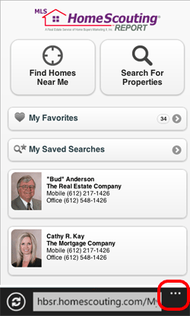
Step 1: Select the "..." button on the address bar.
|
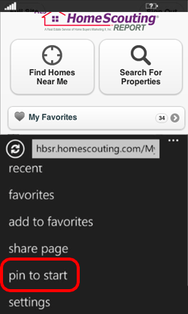
Step 2: Select pin to start.
|
|
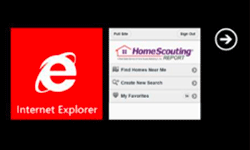
Step 3: Home Scouting will now be pinned to your start screen.
|
